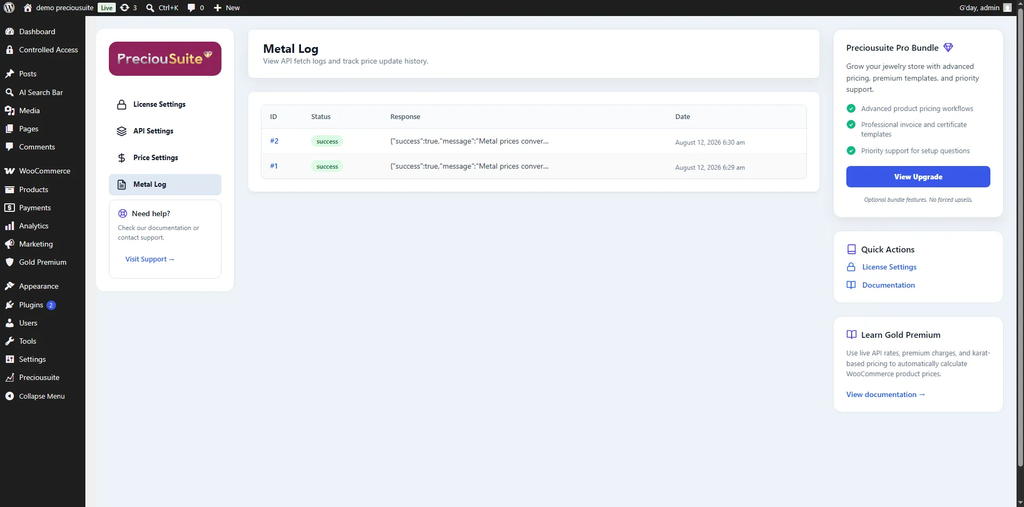


The Gold Premium Licenser manages live API pricing for your products, enabling automatic markup and charges.
Requirements
Before installing, confirm your store meets these requirements.
⚠️ WooCommerce must be active first
The plugin will not activate without WooCommerce. Install and activate WooCommerce before continuing with this guide.
Installation & Activation
How to install the Gold Premium Licenser plugin.
- Upload the
gold-premium-licenserdirectory to your/wp-content/plugins/directory (or install via WP Admin -> Plugins -> Add New -> Upload). - Navigate to ‘Plugins’ and activate ‘Gold Premium Licenser’.
License Verification
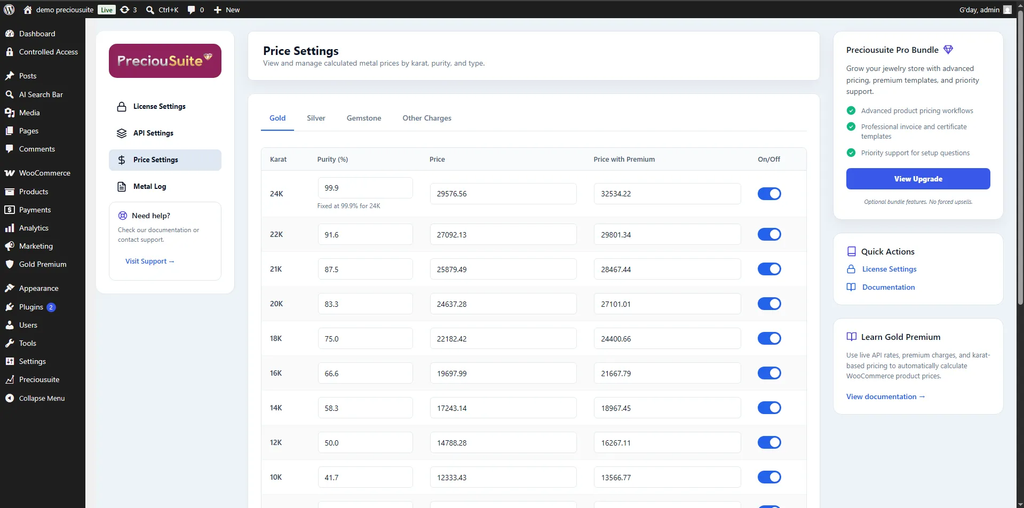
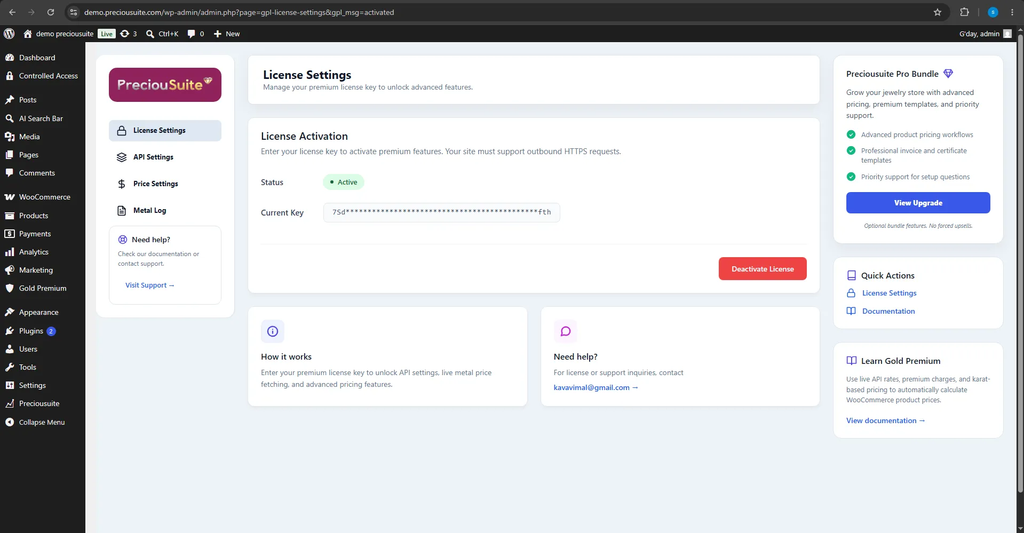
- Go to the newly created ‘Gold Premium’ menu in your WordPress dashboard.
- Enter your License Key and click ‘Activate License’ to unlock the plugin’s premium features.
- Note: You will receive your license key via email when you purchase the plugin at https://www.preciousuite.com/. You can also retrieve it by logging into your account and checking https://www.preciousuite.com/orders.
Global API Settings
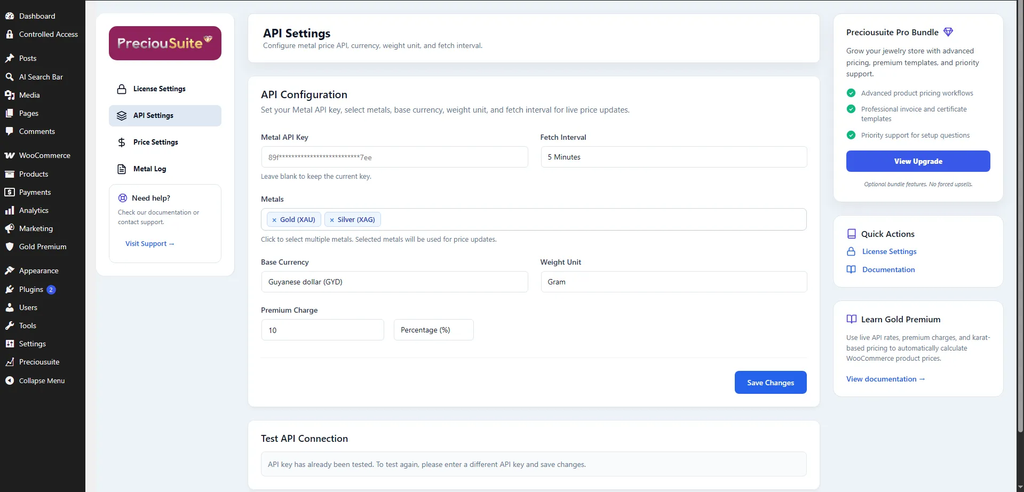
- Go to ‘Gold Premium’ -> ‘API Settings’.
- Configure your Metal API Key (Note: You will receive this API key via email when you purchase the plugin) and select the metals to track (Gold, Silver, Platinum, Palladium).
- Configure Base Currency and Weight Unit.
- Set a global ‘Premium Charge’ (Flat or Percentage) if you want to automatically mark up fetched prices.
- Set the Fetch Interval (Note: It is automatically set based on the metal frequency rate plan you purchased).
- Click ‘Run Test’ in the ‘Test API Connection’ section to debug and verify your connection payload.
Metal Price & Charge Configurations
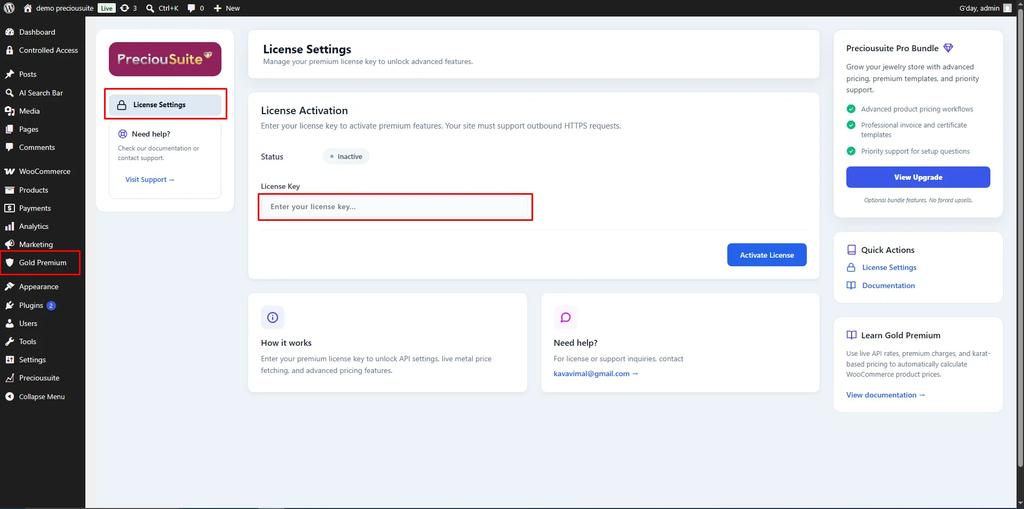
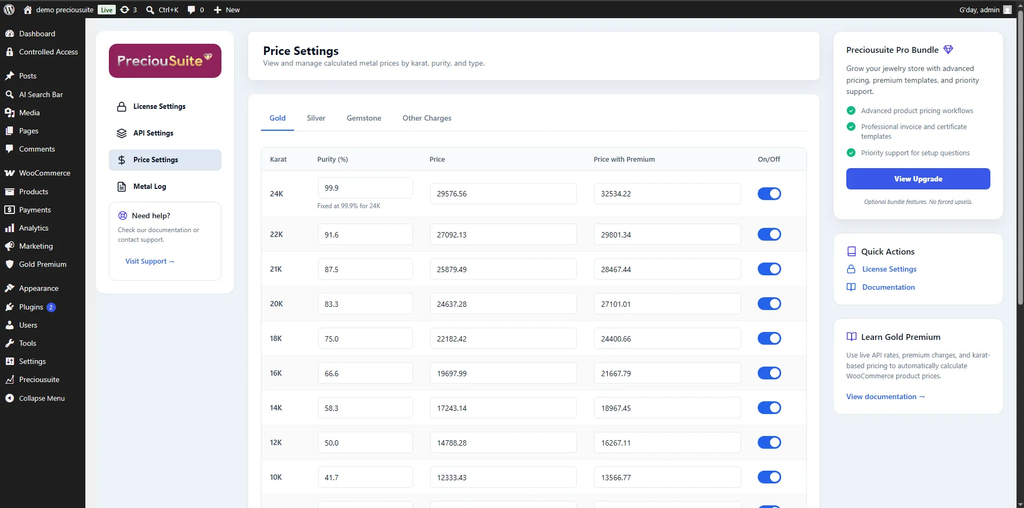
- Go to ‘Gold Premium’ -> ‘Price Settings’.
- Metals: Review fetched rates in the metal tabs and toggle specific purities (e.g., 24K, 22K, 999 Fineness) ON/OFF.
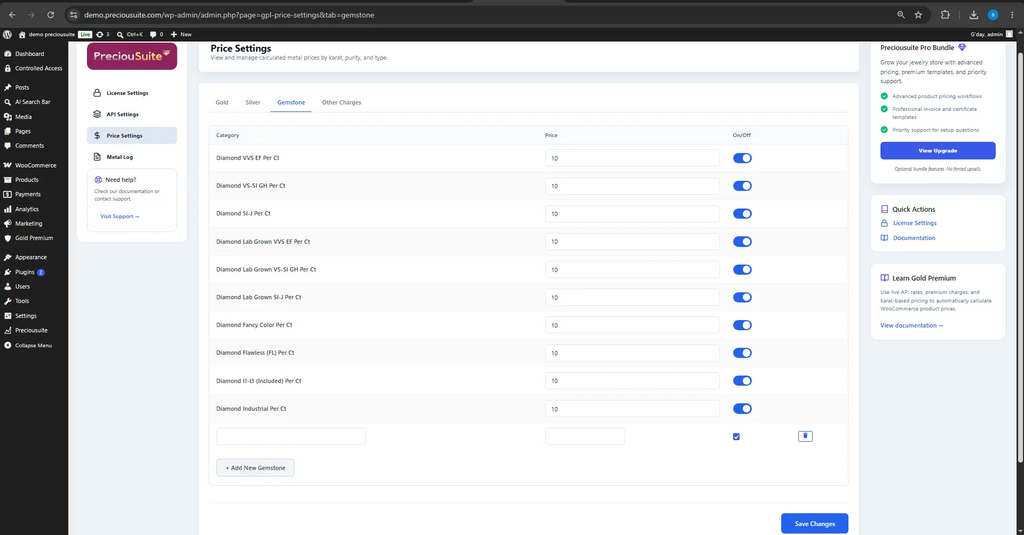
Gemstone Tab: Set up default categories (e.g., Diamond VVS) or add custom categories with base prices.
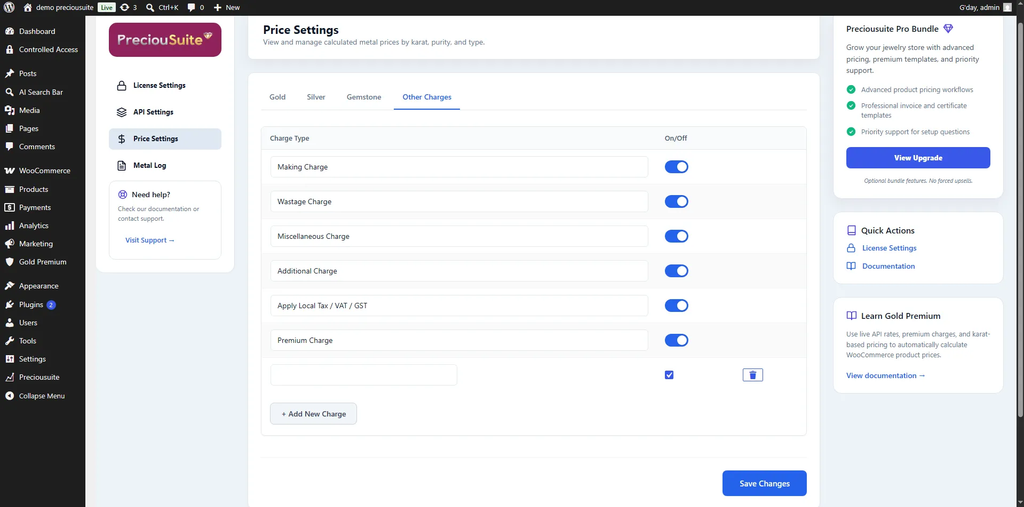
Other Charges Tab: Add specific charges (Making Charge, Wastage, GST, Tax) and toggle them ON/OFF.
WooCommerce Product Setup (Simple Products)
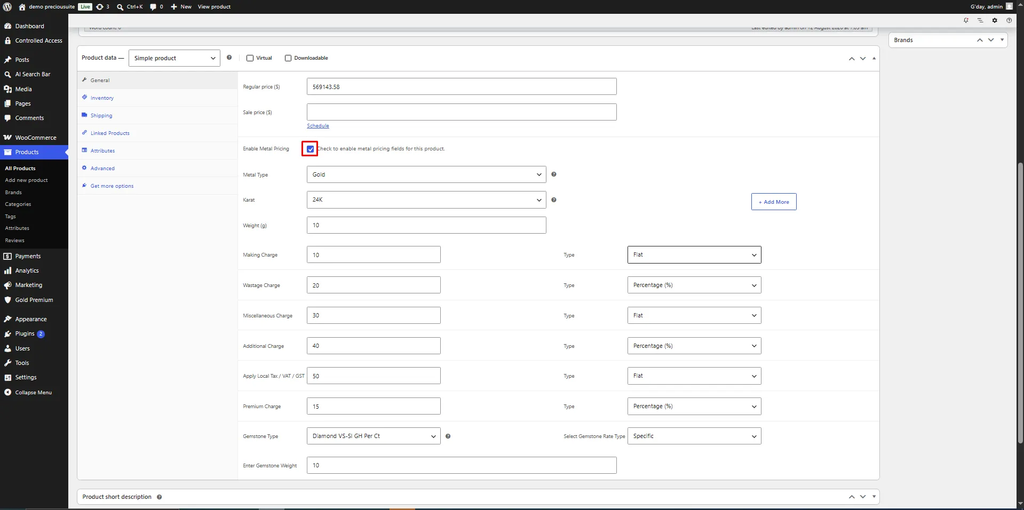
- Edit any Simple Product and find the ‘Metal Pricing’ tab in the Product Data meta box.
- Check ‘Enable Metal Pricing’.
- Select Base Metal, Karat/Purity, and enter the Base Weight.
- Use the “+ Add More” button to add up to 3 “Additional Metals” to a single product if it is an alloy or mix.
- Configure Gemstone settings (Type, Rate Type, Flat Rate).
- Configure specific Other Charges overrides (Flat or Percentage) for this specific product.
WooCommerce Product Setup (Variable Products)
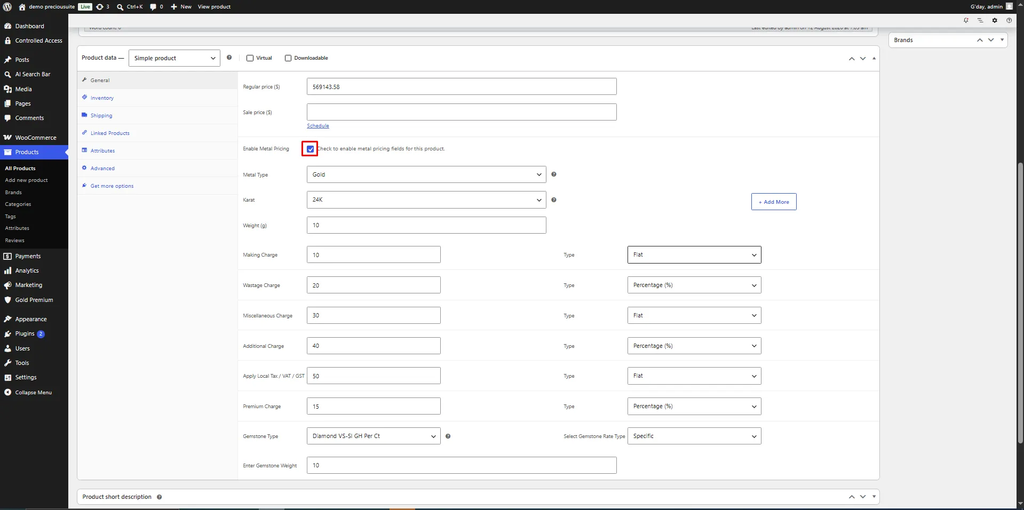
- Edit a Variable Product and go to the Variations tab.
- The Metal Pricing configuration (Enable checkbox, Base Metal, Weight, Additional Metals, Gemstones, Charges) is available independently per variation.
- You can set different weights and purities for every variation.
Frontend Display & Shortcodes
[live_spot_prices]: Displays a scrolling ticker of live metal prices on any page, complete with percentage change indicators compared to previous prices.

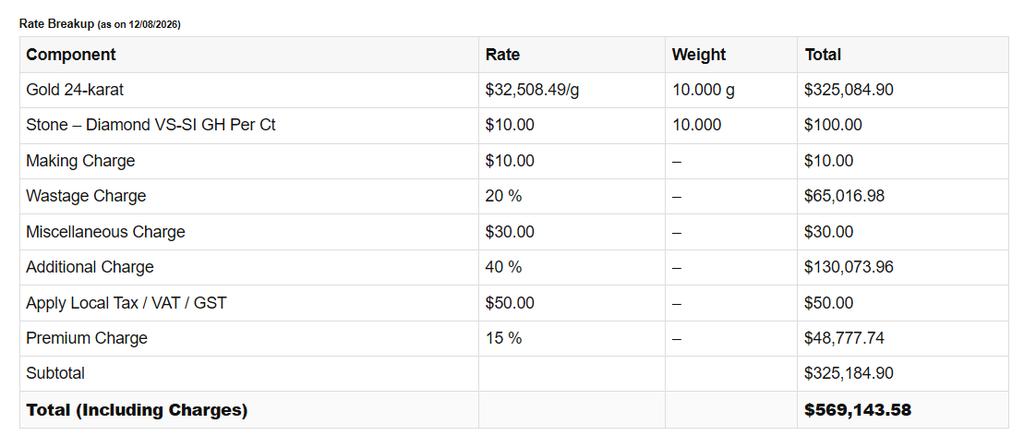
[gplbp_price_breakup]: Displays a detailed price breakdown (metal cost, gemstone cost, charges) on the product page. For variable products, this breakup automatically updates dynamically via AJAX when a user selects a different variation!
Logs & Troubleshooting
- Navigate to ‘Gold Premium’ -> ‘Metal Log’.
- View the history of automated background API fetches. You can click any log ID to view the raw JSON responses and easily debug connectivity errors.